Roast copilot
Above the reference, or below it.
A small arrow at the head of the curve, against the roast you chose to chase. A glance, not a reading.

BRASA records the roast, keeps the coffee and remembers who made it — and otherwise leaves the roaster alone. Desktop software for small independent roasteries: one or two machines, a handful of people.
The roaster’s attention belongs to the roast, not to the software.
A small arrow at the head of the curve, against the roast you chose to chase. A glance, not a reading.
At each decision point Auto sends burner, air and drum — and one tap hands the roast back to you.

Burner, air and drum at the charge, the turning point, first crack or a temperature you choose — with a line of what you do.

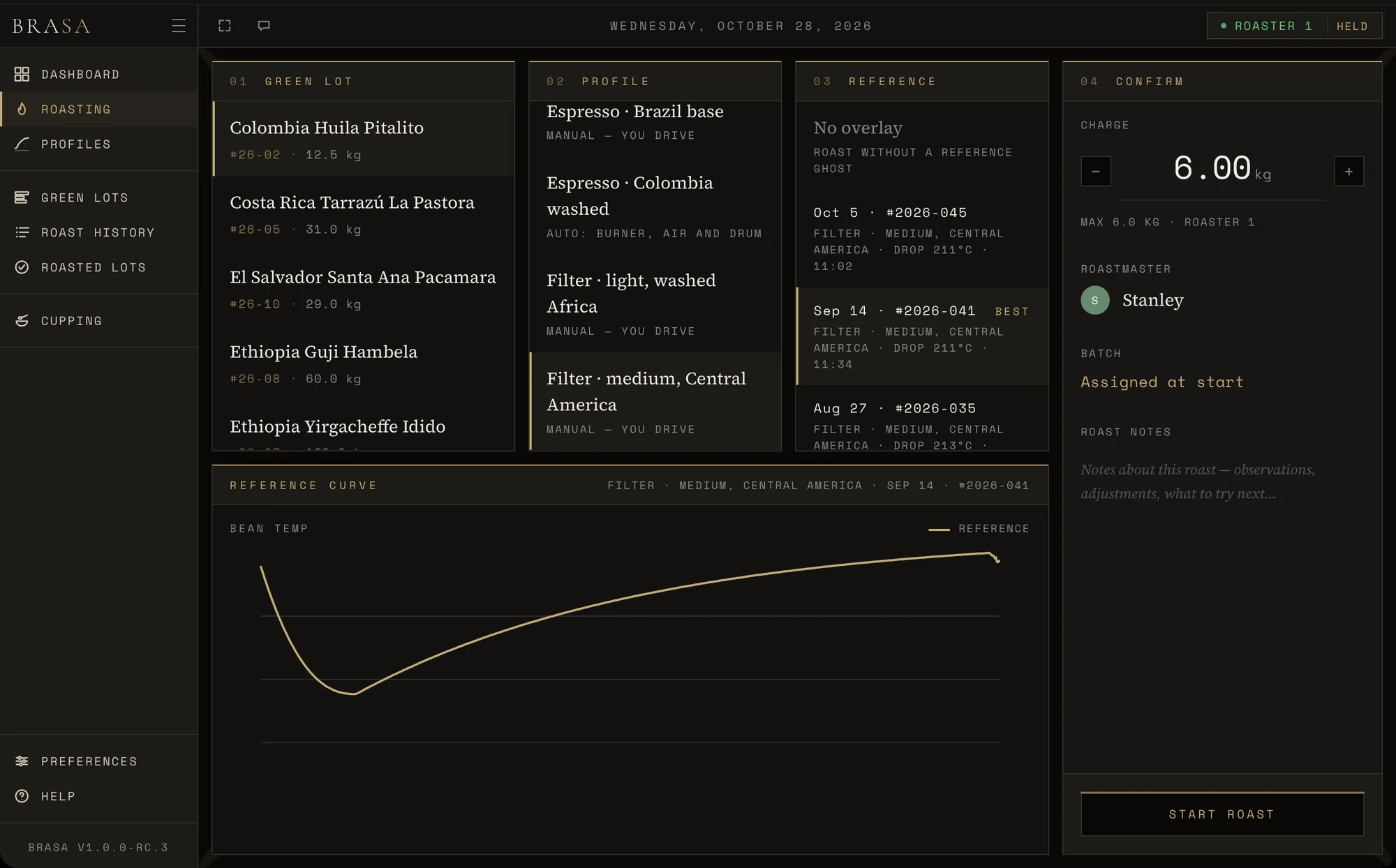
At pre-roast, pick a past roast of the same coffee — the golden batch comes first — and it is drawn behind the curve.

Weigh it now or later, say whether it was production, sample or test — and the next batch starts from the same setup.

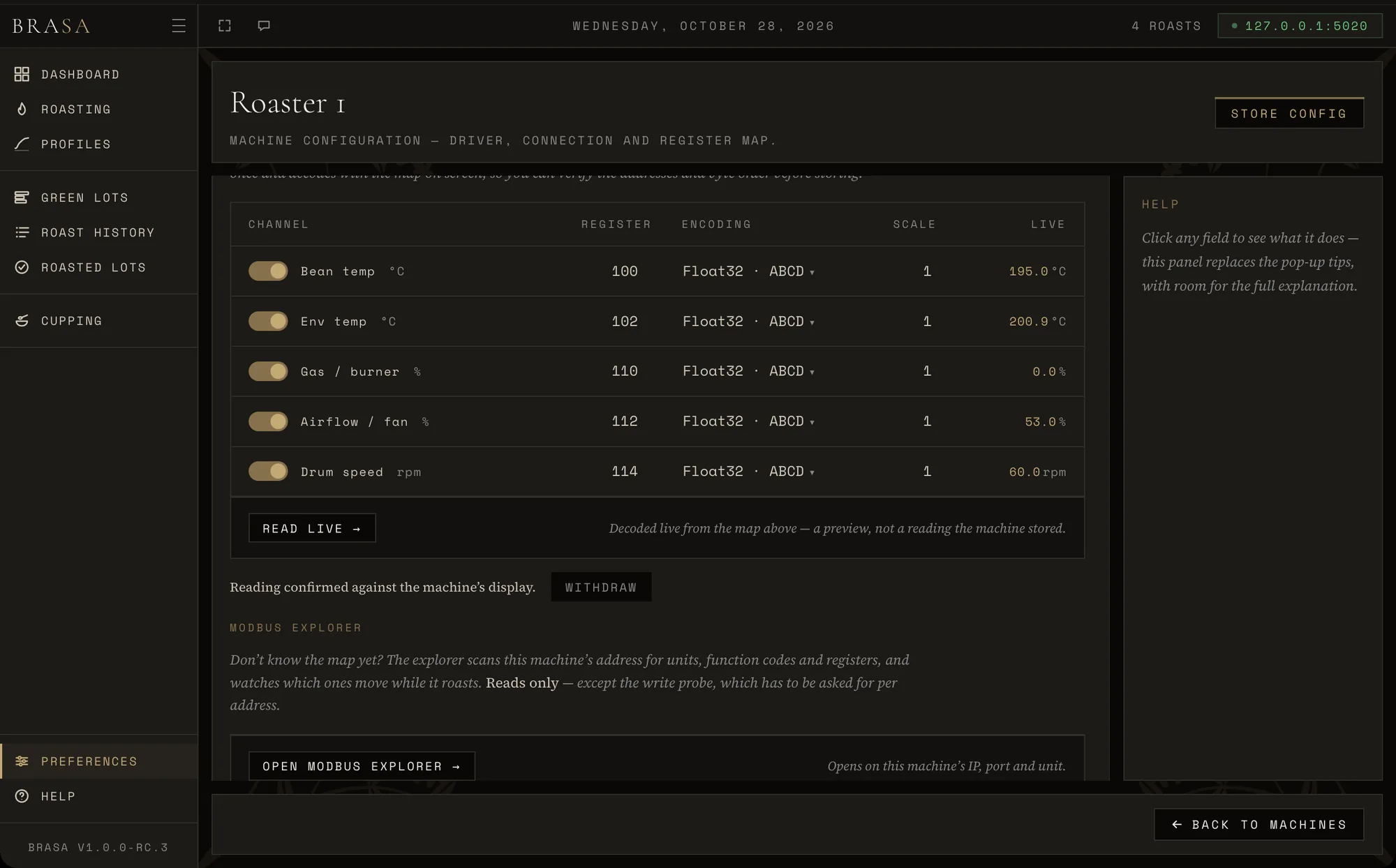
Tell BRASA where its readings live — register, encoding, scale — and Read live shows the numbers before you store it.

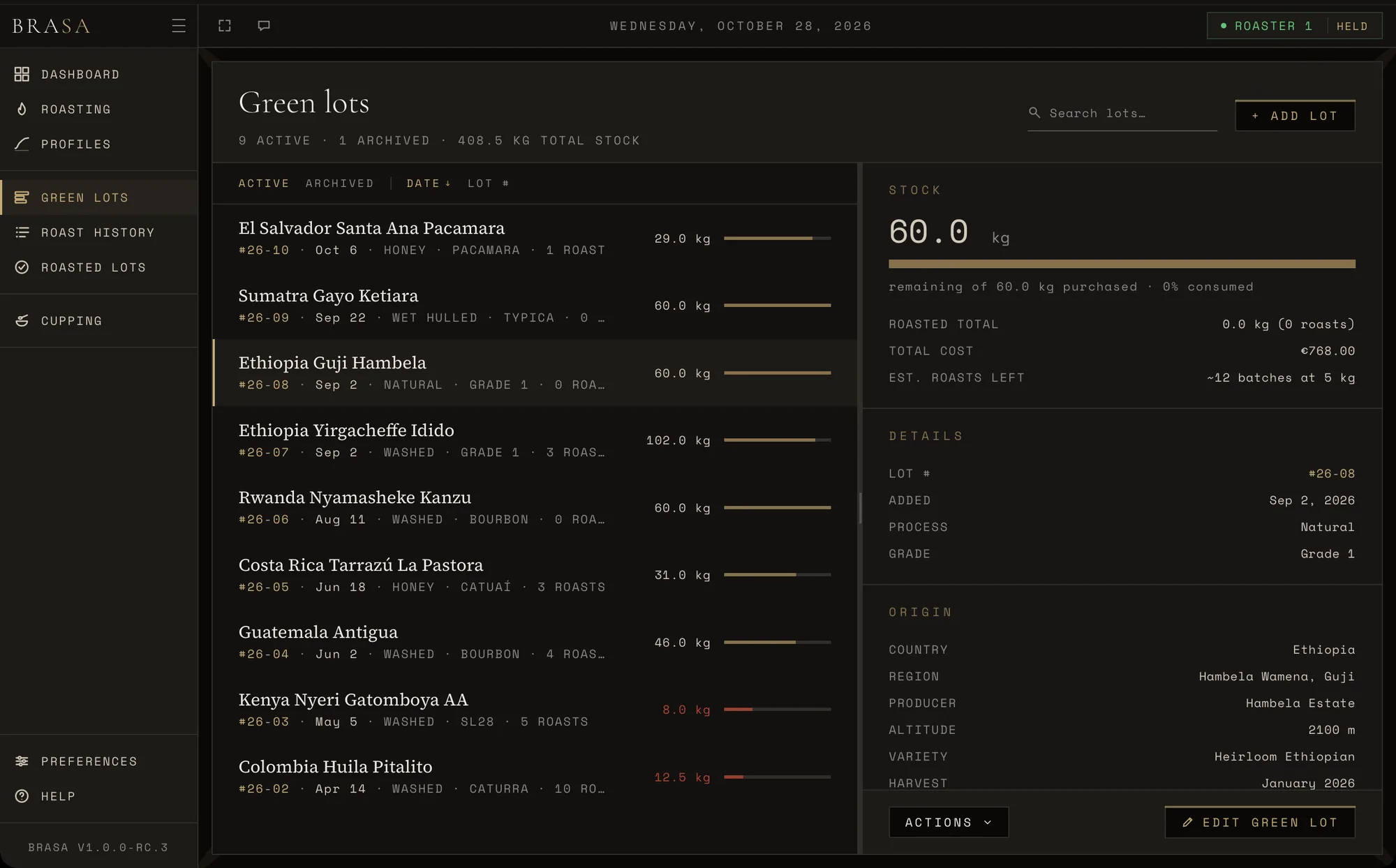
Origin, process, harvest and stock — and every roast takes its charge off the lot it came from.

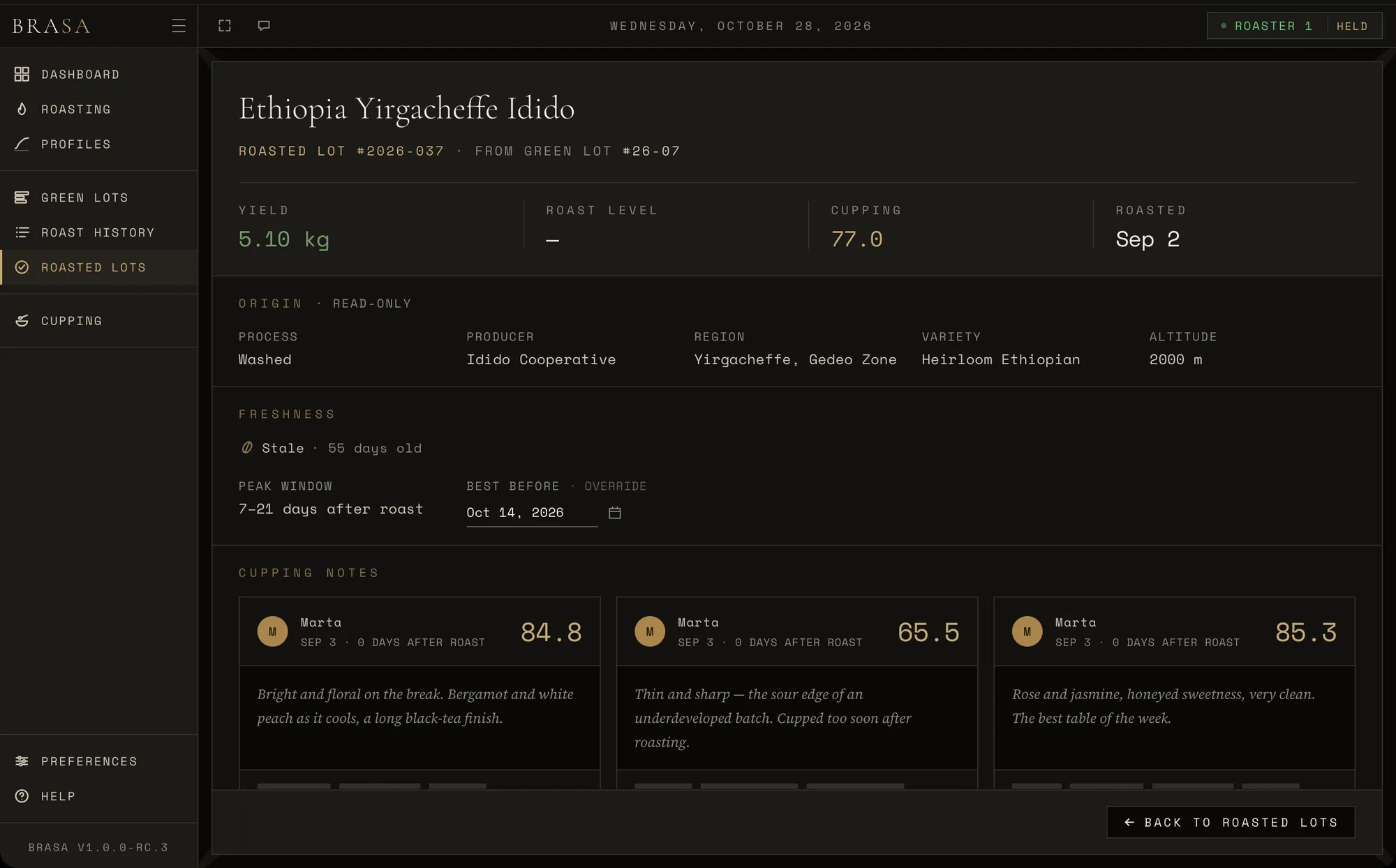
A production roast becomes a roasted lot: its yield, its age since roasting, and what the cuppers found.

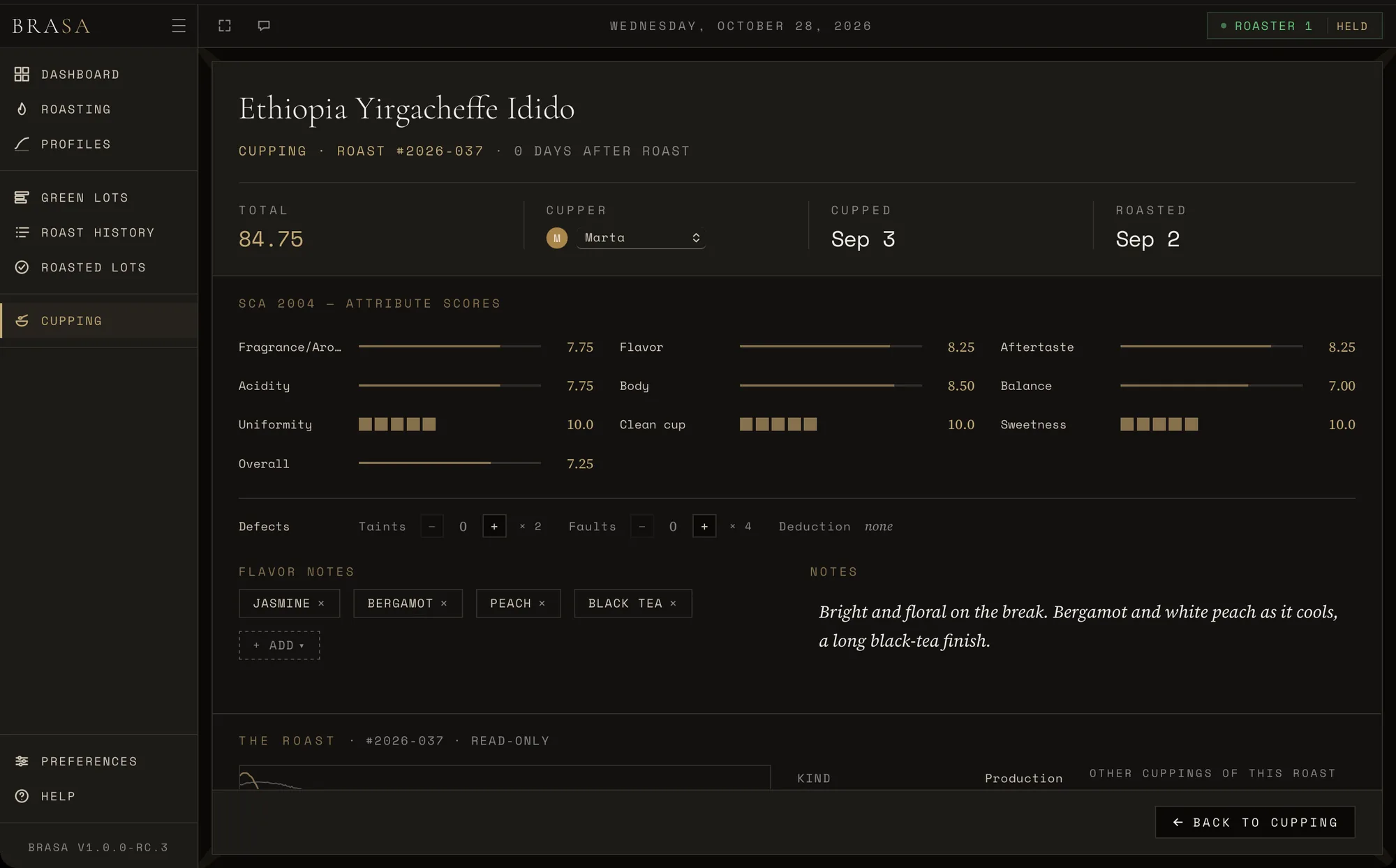
The SCA 2004 sheet — the total counts itself — with flavour notes, your own words and the roast it came from.

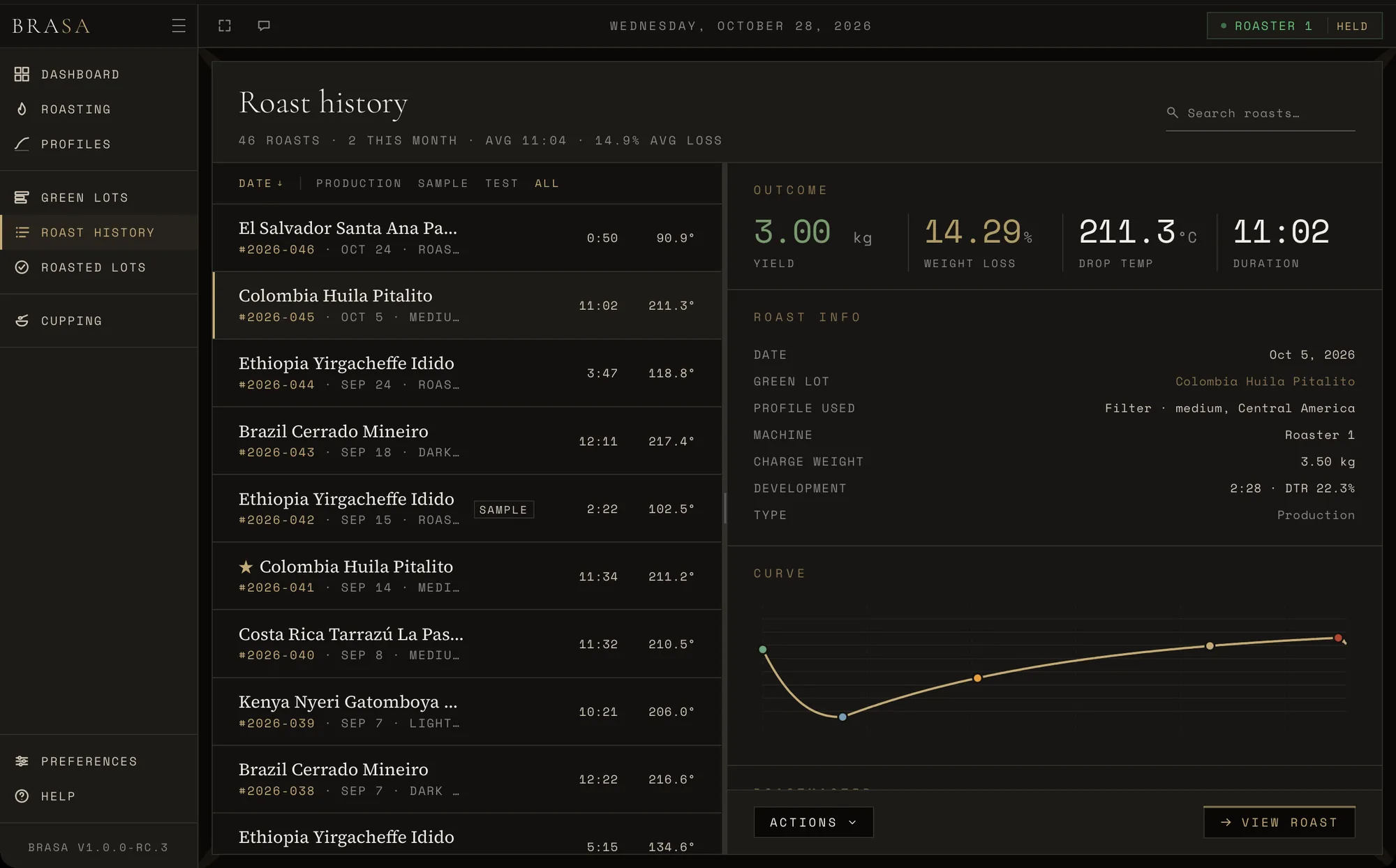
Production, sample and test in one history. The curve and the marks are never edited afterwards; a golden batch wears a star.

Screenshots of the release candidate with a demo roastery’s data, replaying a real roast on a simulated machine — nothing drawn for the page. Tap a screen to see it full size.
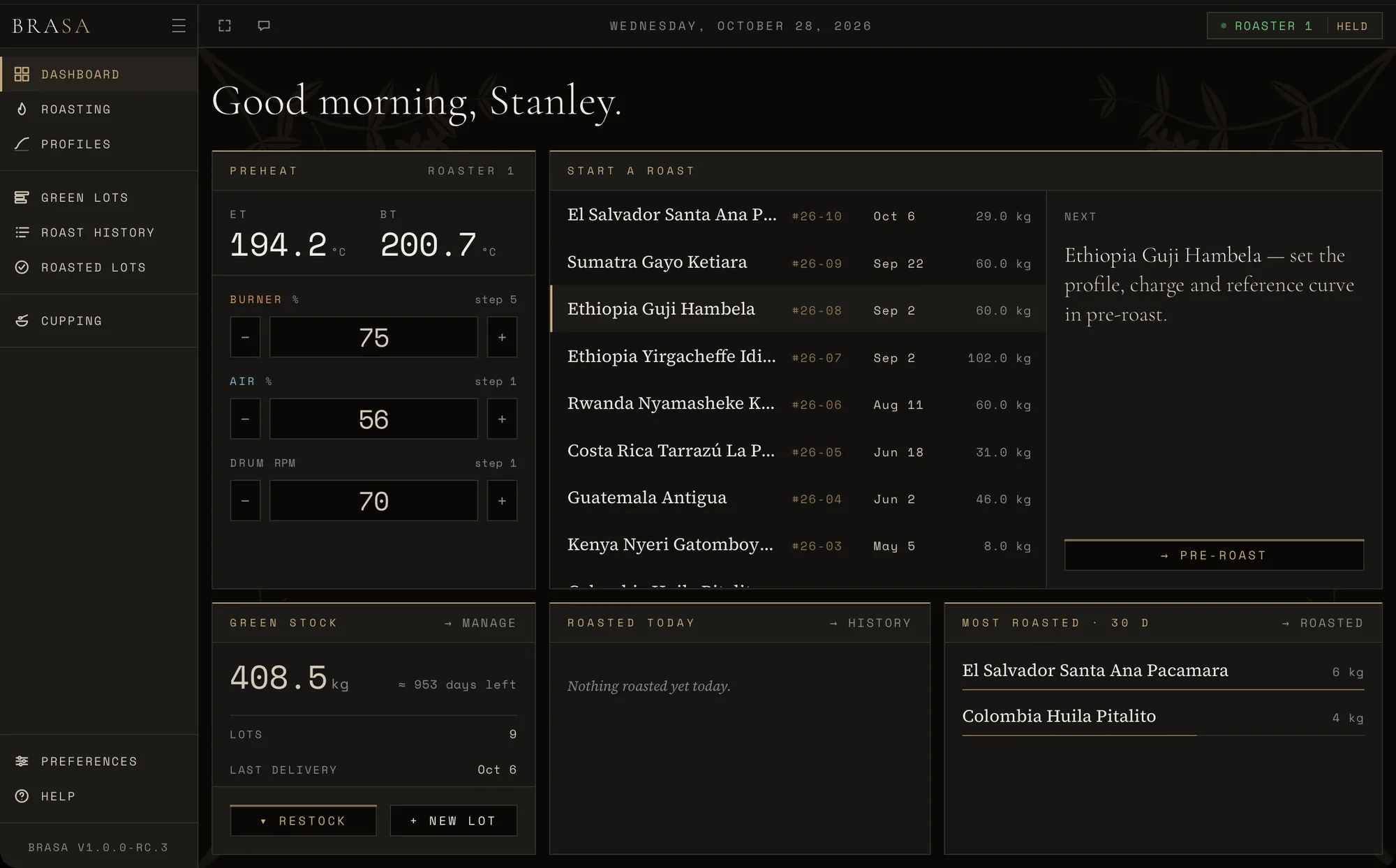
Preheat the machine without starting a roast, pick the coffee and go to pre-roast. Green stock, what was roasted today and what has been roasted most.
The green lot, the profile, a past roast to roast against — the golden batch is marked Best — and the charge weight, signed by whoever is roasting.
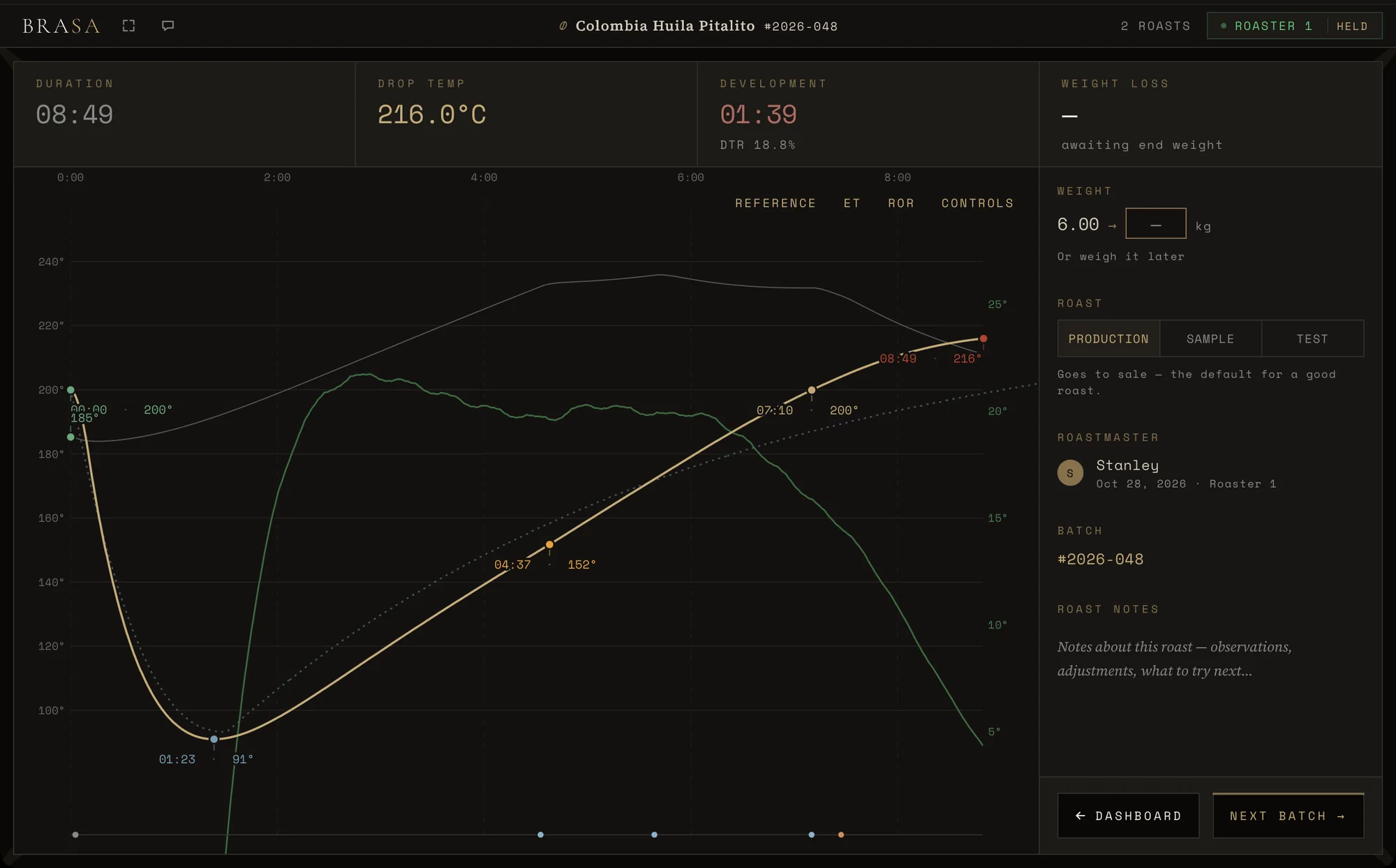
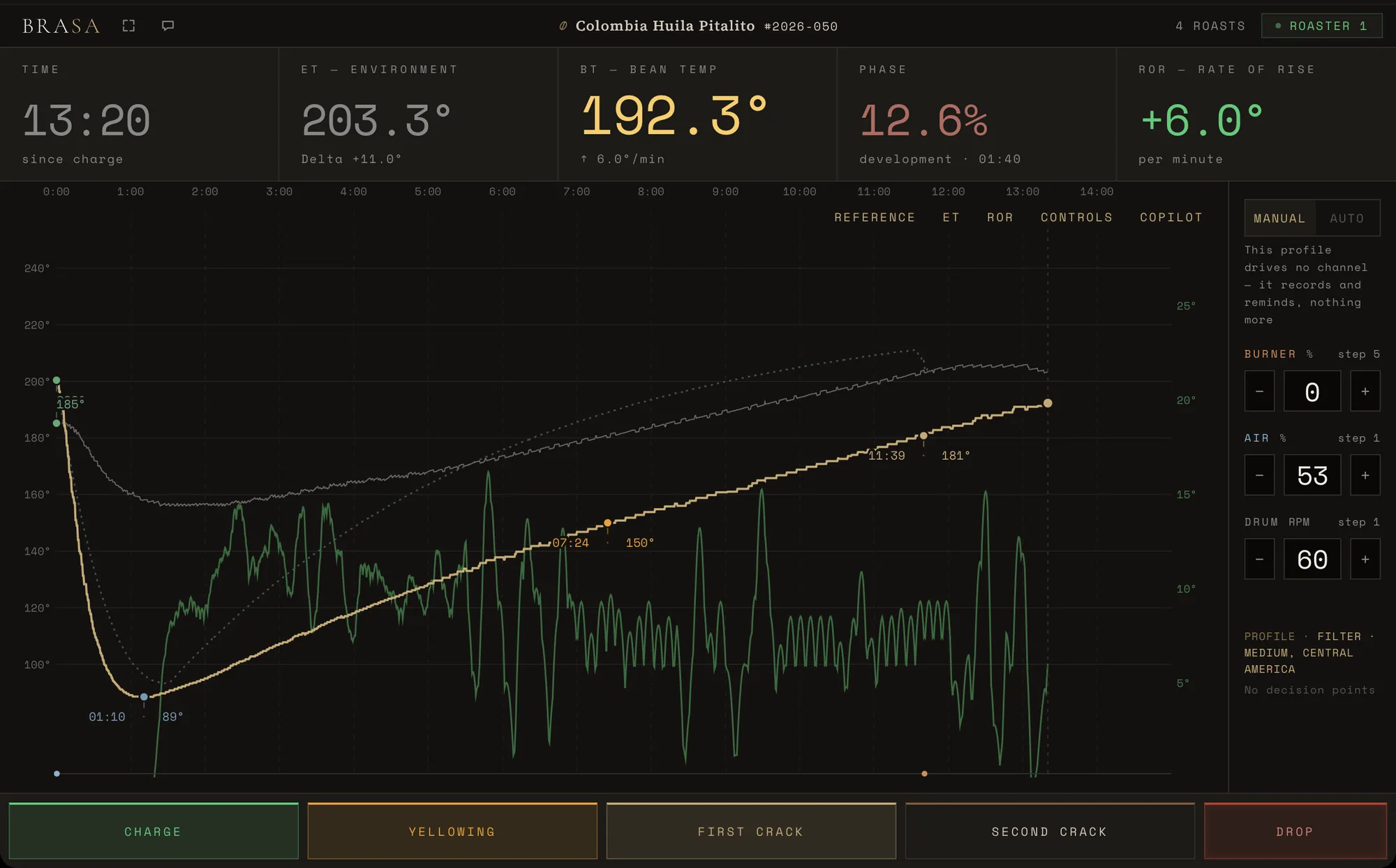
Bean and environment temperature exactly as the machine sends them — nothing smoothed — and the rate of rise worked out from them. Yellowing and first crack marked, the golden batch dotted behind, Drop held.
Duration, drop temperature and development at a glance. Weigh the batch now or later, and say whether it was production, a sample or a test.
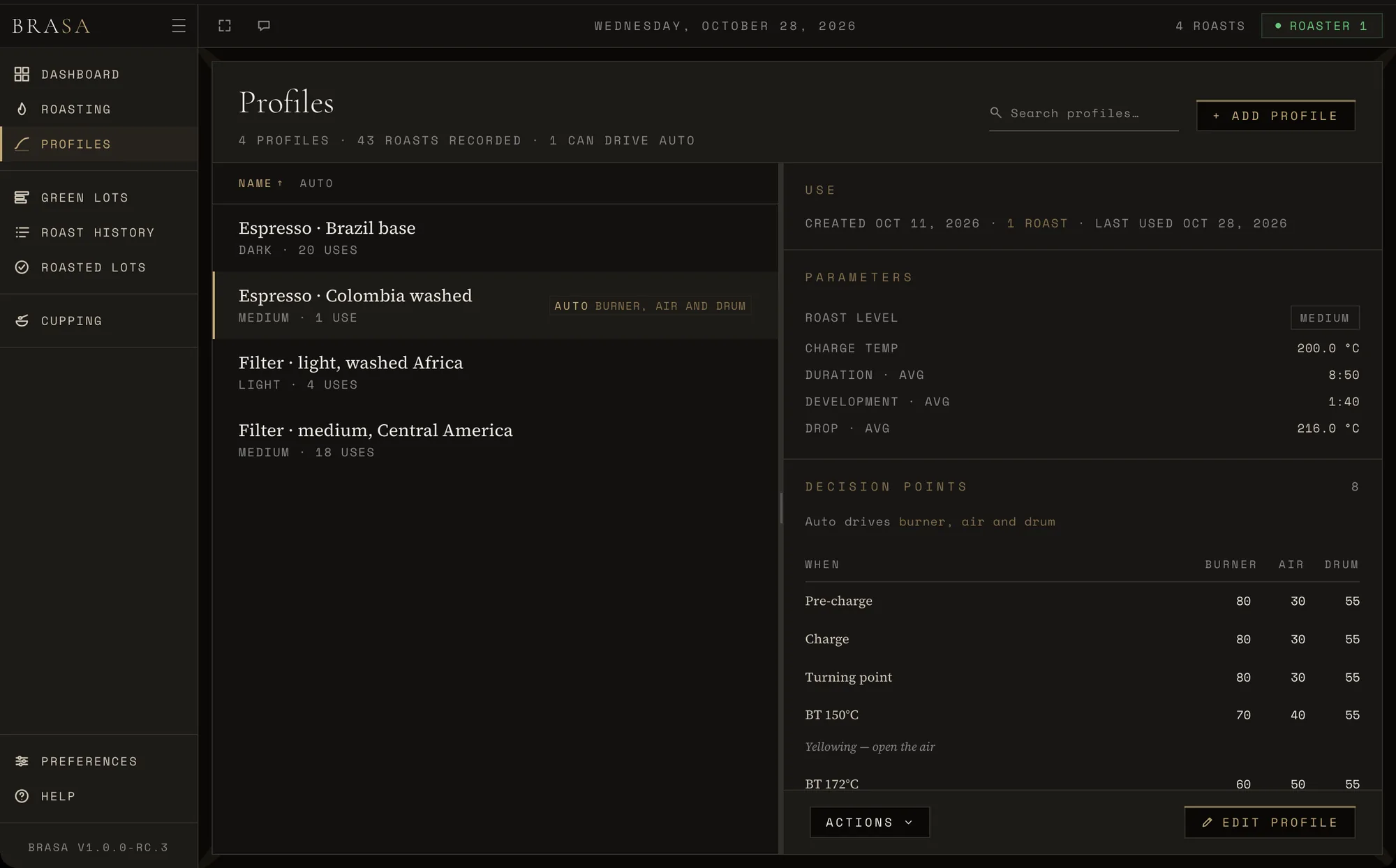
Each point fires at a moment or a temperature and says what to set burner, air and drum to. A profile that can drive the machine is marked Auto.
Production, sample and test roasts in one list, the golden batch starred. The outcome, the roast’s facts and its curve in the panel beside it.
Each delivery is its own lot. Stock goes down with every roast; origin, producer and harvest stay with the coffee.
Yield, roast level, freshness and a best-before date, and every cupping of it — signed, scored and written down.
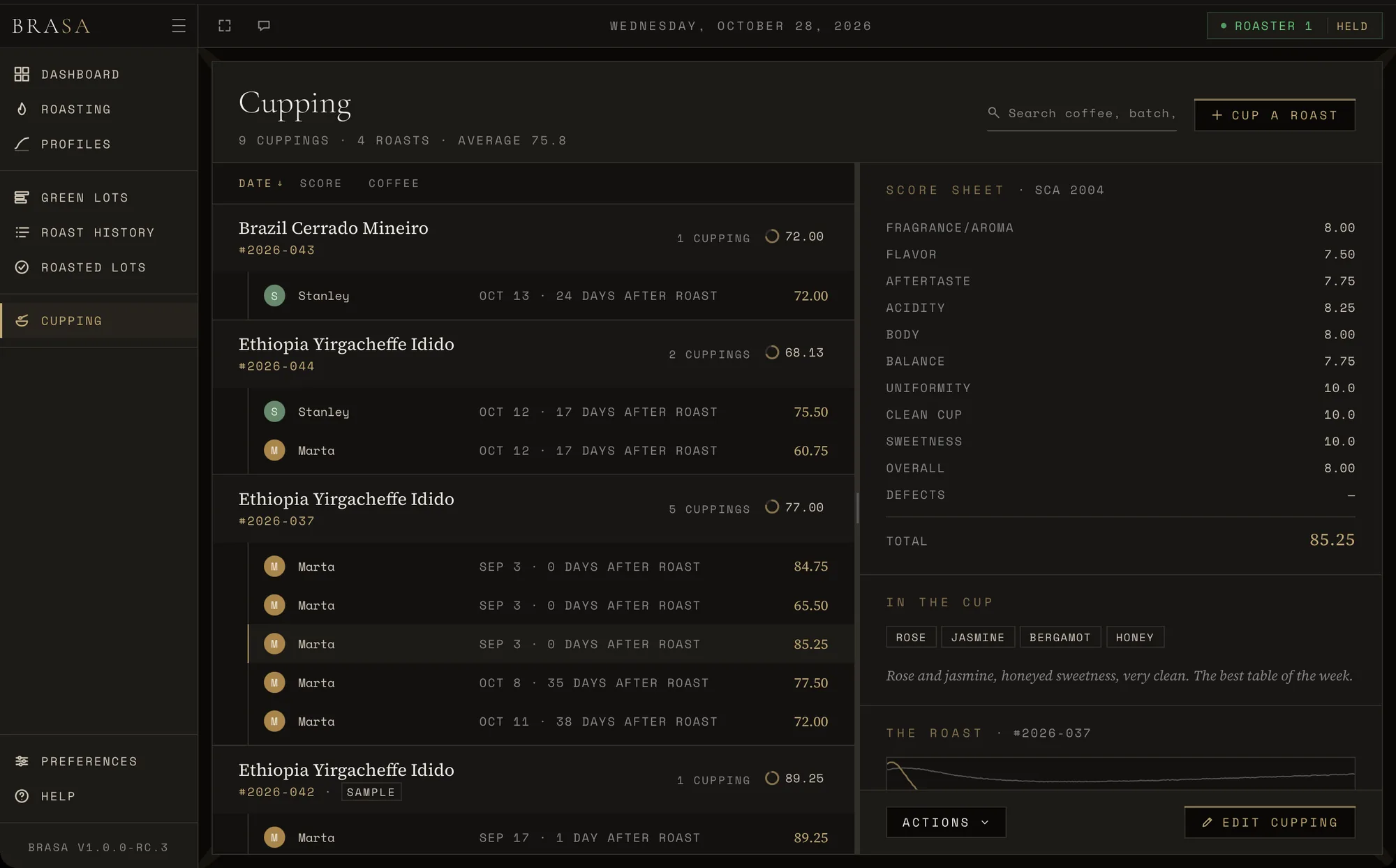
Every cupping under the roast it tasted, with how many there were and their average. The sheet, what was in the cup and the roast’s curve beside it.
Ten attributes, the defects, flavour notes and what you found. The total counts along as you score; nothing to save.
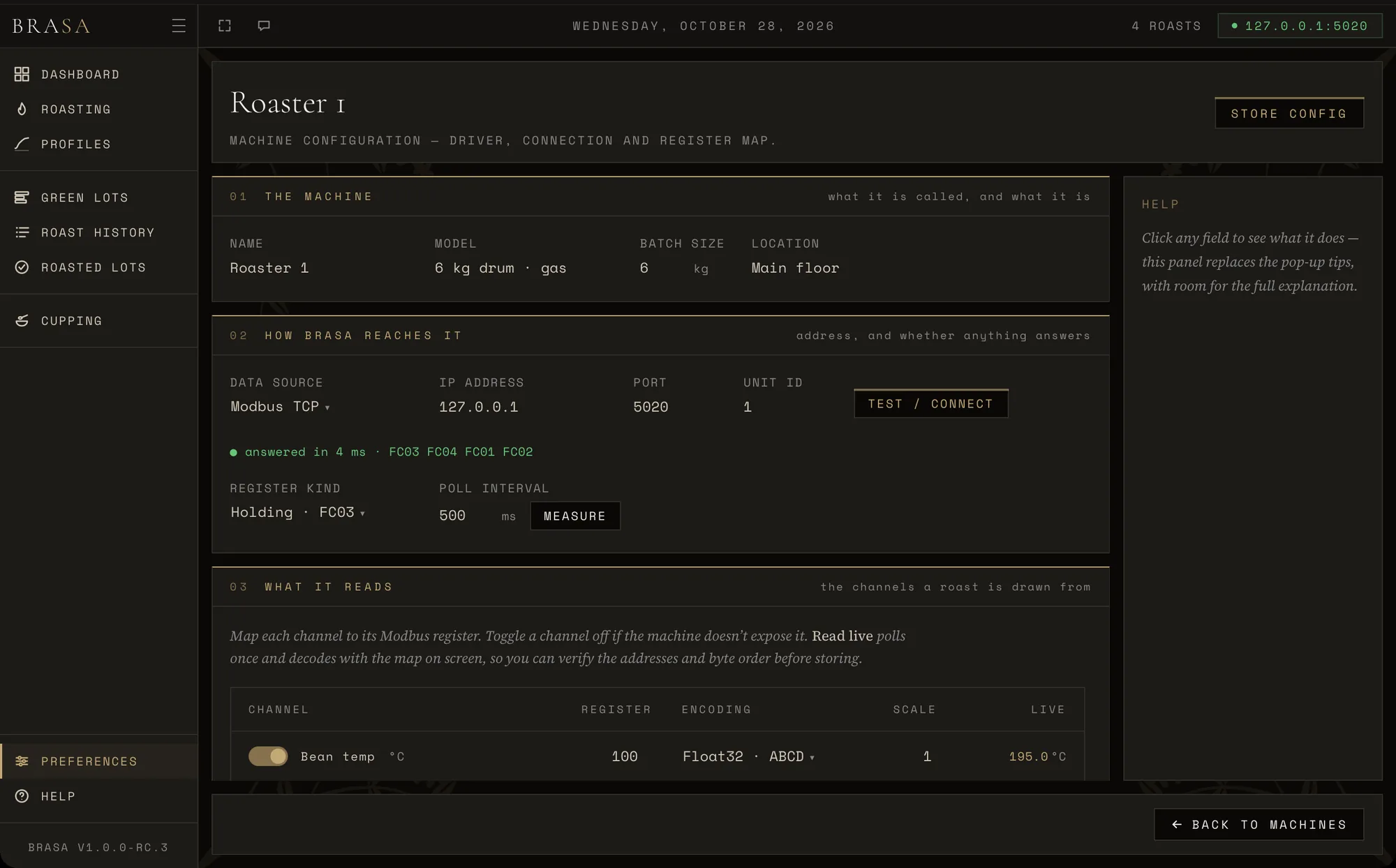
A roaster on the network: name and batch size, the address and unit, how often to read — and Test / connect before anything is stored.
Each channel mapped to its Modbus register and encoding. Read live decodes the map on screen before you store it; the Modbus explorer finds registers you do not know.
Bean and environment temperature and the rate of rise, drawn live from what the machine sends. Your hands stay at the drum; the screen is there when you look.
Nothing is recorded until you press Charge. Mark yellowing, first and second crack as they happen — the turning point is found for you. Drop is held, not clicked, so it never happens by accident.
If the machine goes quiet, the clock keeps running, the curve shows the hole and BRASA reconnects on its own. It never draws a reading it did not receive — and every reading is on disk the moment it arrives.
Before the charge, pick a past roast of the same coffee and it is drawn behind the live curve. BRASA suggests the golden batch if you have marked one, otherwise the most recent.
A profile holds the level, the charge temperature and what to set burner, air and drum to at each moment — charge, turning point, first crack or a temperature you choose. The line you wrote appears when it is time.
On a machine whose controls BRASA may write, a profile can drive the roast: hold Auto to engage it, and take over the moment you want to. On a read-only machine you follow the points yourself.
Bring the drum up to temperature from the dashboard without starting a roast. After the drop, weigh the batch — now or later — and say whether it was production, a sample or a test.
BRASA ships drivers, not machine presets. A roaster that speaks Modbus over your network needs no code at all — you tell BRASA where its readings live, and see live numbers before you store anything.
Not there yet: Bluetooth · Modbus over a serial cable · temperatures typed in by hand
Every roast knows the coffee it came from, the person who made it and what it tasted like — without anybody filling in a form to make it so.
Each delivery is its own lot. Every roast takes its charge off the stock; a lot that reaches zero archives itself, and Restock brings the same coffee back as a new delivery. Freshness counts from the harvest.
The curve and the marks stay exactly as they were recorded. Notes, weights and what kind of roast it was can be changed later; a golden batch is marked once and suggested from then on.
A production roast becomes a roasted lot with its yield, its roast level and its age — peak, good, fading — and a best-before date you can set yourself.
Score production batches and samples on the SCA 2004 sheet. The board groups cuppings by roast with their average, and every cupping keeps the line back to the roast it tasted.
Roasts and cuppings carry the name of whoever made them. A name is authorship, not a permission — anyone can do anything, and a roastmaster who leaves hands their work on.
Flavor notes and certifications: type a word once and it is offered the next time. Dates, weights and temperatures are written the way your region writes them.
BRASA is a release candidate. It is offered free to roasteries willing to try it on real roasts and say what they find.
One installer. BRASA tells you when there is a newer one — never during a roast.
At first launch, your roastery’s name and an email. The trial licence is switched on for you.
In Preferences → Machines. Or roast the demo first and connect later.
BRASA is not signed by Microsoft or Apple yet, so the first time it opens, each system asks once.
While BRASA is being tested it sends usage and each finished roast — its curve, events, notes and coffee name, with your roastery’s name — to the developer. One switch in Preferences turns that off.
The test that helps most is an ordinary roasting day — your machine, your coffees, your profiles. Whatever goes wrong, gets in the way or is missing: one sentence is enough, and it goes straight to the developer.

The note goes with your roastery’s name and the version you are on, so there is no need to say which build. Closing the drawer keeps what you wrote.
For anything longer — a file, a video, a question — or when BRASA will not start at all. Say which roaster and which system, and the version: it is at the foot of the sidebar.